Word to PDF: a preflight guide for sharing and print
A PDF freezes the version of a Word document that a renderer sees. A careful preflight makes sure that version contains the right edits, fonts, fields, page settings, and display choices before the pages become fixed.
Use the preflight checklist before uploading and the screen and print review afterward. For measured renderer differences, read the Microsoft Word comparison test. Ready to proceed? Open Word to PDF.
Maintained by Converttwo's independent operator using documented converter behavior and controlled tests. Read how the content is tested.
Word to PDF walkthrough
-
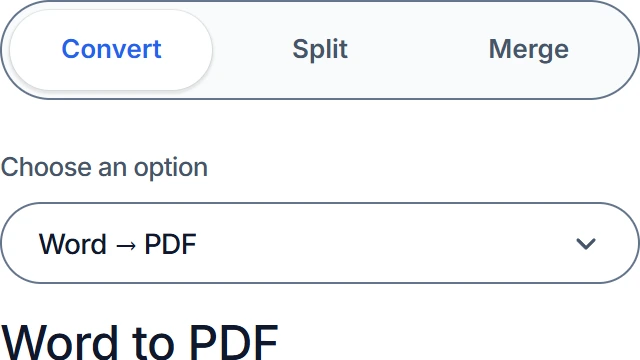
Choose your conversion
Select Word to PDF.
-
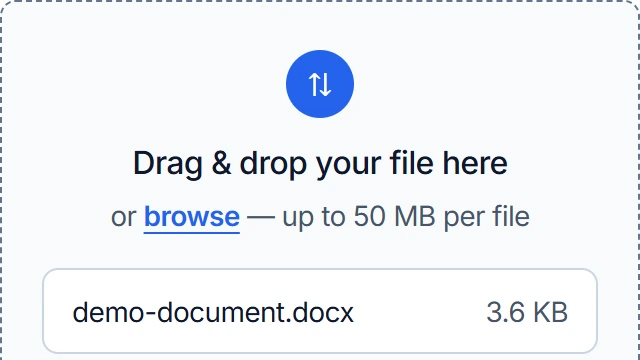
Select your files
Choose one DOCX, up to 50 MB. Conversion starts automatically.
-
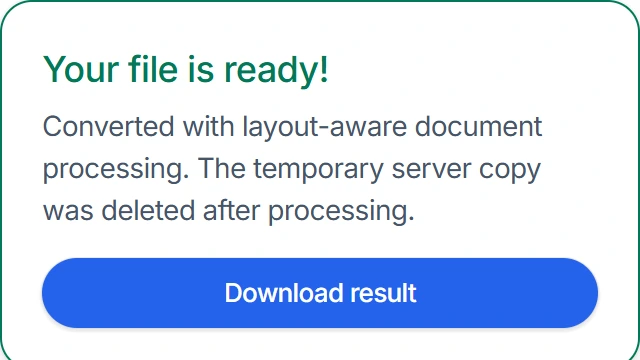
Convert and download
Download the PDF and check fonts, page breaks, links, and images.
Preflight the Word document before making a PDF
Do the final editorial work in Word, not after conversion. PDF is well suited to distribution because its pages no longer reflow like an editable document, but that also makes late corrections more awkward. Keep a separate DOCX master and produce a new PDF whenever the content changes.
A useful preflight is a deliberate pass through the document's states and boundaries. It is different from proofreading: you are looking for content that may be hidden, out of date, or sensitive to a different rendering environment.
- Confirm the file version. Open the intended final DOCX and save a dated or versioned copy before making distribution changes.
- Resolve review material. Accept or reject tracked changes as appropriate, remove comments that should not travel with the final document, and inspect hidden text.
- Update generated content. Refresh the table of contents, page references, captions, dates, and other fields so the visible results are current.
- Check section setup. Review paper size, margins, portrait or landscape orientation, columns, headers, footers, and page-number restarts in every section.
- Inspect font use. Identify unusual typefaces, symbol fonts, and manually formatted characters that may be substituted in another rendering environment.
- Test crowded pages. Look closely at wide tables, full-page images, footnotes, text boxes, equations, and pages where the final line barely fits.
- Review boundaries. Check the first and last line of each page, headings near page bottoms, and blank pages around manual breaks.
- Confirm the upload copy. Use one
.docxfile no larger than 50 MB; an older.docfile must be saved as DOCX first.
Tabs, paragraph spacing, styles, tables, and explicit page or section breaks express intent better than rows of spaces and blank paragraphs. They also give another document renderer a clearer structure to follow.
Choose what the PDF should show
Word can display comments, revision marks, field codes, hidden text, and drawing objects in different ways. Before conversion, switch to the view you consider final and inspect print preview. The PDF records a rendered outcome; it does not preserve Word's editing history as an alternative view that a recipient can turn on later.
Why fonts and pagination can change together
A DOCX does not contain a photograph of each page. It contains text, style definitions, section rules, and objects that an application must lay out. Converttwo uses headless LibreOffice for this rendering step. LibreOffice interprets the document with the fonts and layout behavior available in its server environment, which can differ from the application and computer where the DOCX was created.
Font substitution is not only a visual change. Each typeface has its own character widths, line height, kerning, and bold or italic metrics. If a substitute is slightly wider, the last word on a line may move to the next one. That extra line can push a table, heading, or footnote forward and eventually add another page.
Pagination is a chain reaction
When page count changes, inspect the earliest page where line wrapping differs rather than starting with the final extra page. The first changed wrap is often the cause; everything after it may simply have moved downstream. Tightly filled layouts, long tables, and documents with manual page breaks are especially sensitive.
Complex elements have their own layout rules
Floating images and text boxes depend on anchors and wrapping. Tables respond to cell widths, row-splitting rules, and paragraph spacing. Equations, charts, embedded objects, and application-specific effects may be interpreted differently. Keep important graphics inside the page margins and avoid relying on accidental alignment that exists only at one zoom level.
Supported Word files and server processing
The Word-to-PDF converter accepts one modern Word .docx file up to 50 MB. It does not accept the older binary .doc format. Open an old DOC in Word, LibreOffice, or another compatible editor and save a DOCX copy before using this conversion route.
The DOCX is uploaded over HTTPS and placed in an isolated temporary workspace on the conversion server. Headless LibreOffice uses a temporary profile to render the PDF. The service is designed to remove the uploaded document, generated PDF, profile, and working directory immediately after processing, and cleanup is also attempted when the conversion returns an error. The document is therefore processed on the server rather than entirely within the browser.
Check your organization's handling requirements before uploading confidential or regulated material. Temporary workspace cleanup describes this conversion process, but it is not a substitute for permission to use an online service. See the Privacy Policy for information about the site and its service providers.
Proof the PDF in the way it will be used
Reviewing a PDF for email or web sharing is not quite the same as reviewing it for a printer. A shared file needs readable text, working navigation where relevant, and a sensible filename. A print file also needs the expected paper size, orientation, margins, color treatment, and scaling.
Screen and sharing review
Open the downloaded PDF in a viewer other than the browser tab used for conversion. Confirm the first page, last page, and total page count, then inspect any page with a special font, chart, signature block, or wide table. Test links you expect recipients to use, search for a sentence, and zoom in on small symbols. Rename the file so recipients can distinguish the approved PDF from earlier drafts.
Print review
Open print preview with the target paper size selected. Look for unexpected scaling, cropped headers, content too close to a binding edge, landscape sections rotated onto portrait paper, and colors that lose contrast in grayscale. For an important run, print representative pages that include ordinary text, images, and the densest layout before approving the entire document.
| Proofing checkpoint | What a change can reveal | What to compare |
|---|---|---|
| Page count and breaks | Font substitution, changed spacing, or different section handling | The first page where wrapping diverges, plus every manual break |
| Fonts and symbols | A missing typeface or symbol-font mapping | Headings, bold and italic text, bullets, equations, and special characters |
| Tables and graphics | Reflow, altered anchoring, clipped content, or split rows | Wide tables, captions, labels, text wrapping, and page margins |
| Headers and footers | A section link or first-page setting interpreted differently | Section openings, page-number sequences, dates, and document titles |
| Sharing behavior | A visible link, text layer, or filename that needs correction | Links, search, text selection, file naming, and opening in another viewer |
| Printed page | Printer scaling, paper mismatch, cropping, or weak contrast | Print preview and a representative physical proof |
If accessibility is a requirement, a visual proof is not enough. Use an appropriate PDF accessibility checker and verify reading order, document language, headings, alternative text, and other requirements for the document's audience.
Tested September 9, 2026
Tested example: a six-page Word document converted to PDF
We converted a 39.6 KB DOCX containing a title page, headings, body paragraphs, repeated headers, footers, and page numbers through the same headless LibreOffice workflow used by Converttwo. The resulting searchable PDF was 97.7 KB.
The source uses a straightforward single-column layout. Documents containing unavailable fonts, fields, tables, floating objects, or complex sections can show larger changes.
Troubleshooting and common Word-to-PDF questions
Why did the PDF gain an extra page?
Compare line endings from the beginning until you find the first difference. A substituted font, changed paragraph spacing, table-row behavior, or a heading kept with the following paragraph can create the initial shift. Correct the source DOCX and convert it again instead of deleting content from the PDF.
Where did the unexpected blank page come from?
Turn on formatting marks in Word and inspect page breaks, odd-page or even-page section breaks, and empty paragraphs after tables. Some section types intentionally begin on a particular side of a printed spread. Remove a break only after confirming it is not controlling headers, margins, columns, or numbering later in the document.
Why did a text box, chart, or image move?
The object may be floating relative to a paragraph, margin, column, or page. Check its anchor and wrapping settings, then make sure the anchor paragraph stays on the intended page. Complex grouped objects may be more predictable when exported as a suitable image, but keep an editable original in case the content will need revision.
Why does a font or bullet look different?
The server may not have the font used to create the DOCX, so LibreOffice can substitute another. Replace uncommon fonts with widely available alternatives when that tradeoff is acceptable, and use Word's list formatting rather than decorative glyphs for ordinary bullets. Recheck pagination after every font change.
Can an old .doc file be converted directly?
No. The accepted Word format is .docx, not .doc. Save a DOCX copy in a compatible editor, reopen that copy to confirm it is intact, and then use it as the conversion source.
Should the DOCX be deleted after the PDF is approved?
Keep the DOCX as the editable master unless your records policy says otherwise. The PDF is a distribution copy with fixed pages; future corrections, updated dates, or revised contact details are better made in the source document and rendered again.
Convert the reviewed version
Complete the preflight, use a final DOCX copy, and compare the resulting PDF before sending it or committing it to print.
Convert a Word document to PDF