Merge PDF files in a predictable order
Use this page for file selection, ordering controls, and output limits. For document-feature decisions, read the PDF feature guide. To inspect an actual output, jump to the six-page merge test and downloads.
Combine two or more PDFs without rasterizing their text or vector graphics. Files start in natural filename order; Move up and Move down let you change it. Pages within each file keep their order. Download the result as merged.pdf.
Combine your PDFs
Arrange the selected files with Move up and Move down, then inspect the merged result before sharing it.
Open the Merge PDF toolHow to merge PDF files
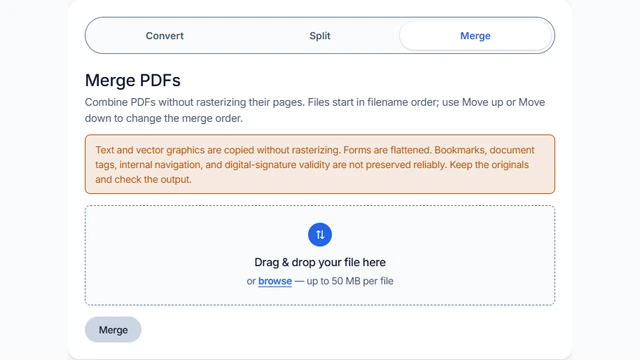
Open Merge PDFs
Choose Merge, select your PDFs, then arrange them with Move up and Move down.
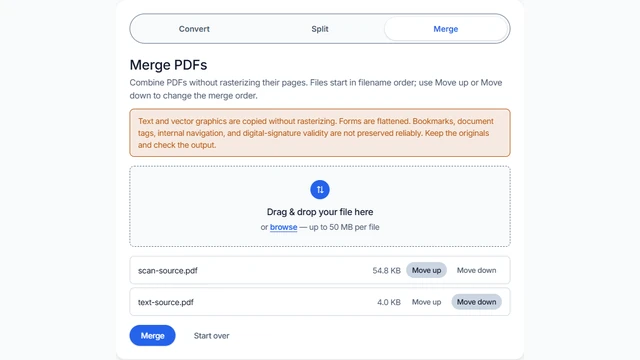
Select and verify
Choose at least two PDFs, no more than 50 MiB each, and check the displayed order.
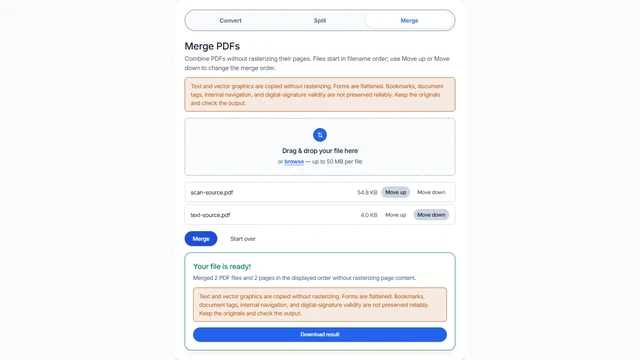
Merge and review
Click Merge, download
merged.pdf, then verify page count, order, dimensions, and visible quality.
What goes into the merged file
Select at least two PDFs. Files initially use natural filename order, so file-2.pdf comes before file-10.pdf. Use the Move up and Move down buttons beside each file to change the order. The displayed order is the merge order; pages within each source keep their internal sequence.
The output is named merged.pdf. Page dimensions, crop boxes, and rotation are copied from the source. Mixed page sizes remain mixed, so check print preview before printing.
Copied pages and PDF structure
Merge uses pdf-lib to copy pages and their resources into a new document. Page text and vector graphics are not rendered to a canvas or JPEG-encoded. Existing scans remain images; this tool does not add OCR.
Forms are flattened on an in-memory copy before pages are copied. Interactive fields are not retained. Document-level bookmarks, tags, layers, attachments, metadata, and internal navigation are not guaranteed to survive. Digital-signature validity is not preserved. Keep the source PDFs.
External links and annotations may copy with a page, but verify their behavior. Use a specialist PDF editor when document-level structure, interactive forms, accessibility, or signed records must remain intact.
Inputs, practical limits, and privacy
Each selected file may be up to 50 MiB. Source objects and the assembled output are held in browser memory, so very large or complex jobs can still exceed available memory. No canvas rendering is required for merging.
PDF processing occurs in the browser and selected PDF content is not sent to the document-conversion API. The web page still requests third-party assets, including scripts and fonts, so this is browser processing rather than a fully offline application. Review the Privacy Policy before working with confidential or regulated records.
There is no password-entry workflow. A password-protected or encrypted PDF may fail to open; remove protection only when authorized and use an appropriate PDF application.
When merge is unsuitable
- Use a specialist PDF editor when interactive forms or complete document-level bookmarks, tags, attachments, and navigation must survive.
- Use a signature-aware packaging workflow when digital signature validity matters.
- Use a print-production tool when prepress checks or exact document-level preservation are required.
- Reduce or batch very large jobs when browser memory is a constraint.
Tested September 28, 2026 in Chrome
Six split pages merged without changing their rendered content
We split a 13,520-byte searchable PDF into six numbered files, then merged those files in page order with the current tool. The 11,681-byte result contained six pages. Extracted text, per-page word counts, fonts, page dimensions, and displayed-image counts matched the source.
Repeat the check
- Open both files in the same PDF viewer.
- Compare page count, page order, orientation, and visible dimensions.
- Search for a sentence in each file and inspect small text at 100% zoom.
- Check links, forms, annotations, and signature status if those features matter to your workflow.
Troubleshooting a merge
The PDFs appear in the wrong order
Use Move up and Move down to arrange the displayed files before clicking Merge. Selecting a new batch resets the order to natural filename order.
The browser slows down or stops
Close other memory-heavy tabs and merge fewer files at a time. Source and output PDF objects still require memory.
Text cannot be selected after merging
Check whether the source has selectable text. Scanned pages remain images. If selectable source text is missing from the output, keep the source and report the problem.
A protected PDF will not open
The converter has no password prompt. If you are authorized, create an unlocked copy in suitable PDF software before merging; otherwise do not bypass the protection.
Merge PDF FAQ
How many files are required?
At least two PDFs are required, and each may be up to 50 MiB. Available memory can impose a lower practical limit for page-heavy or high-resolution files.
What is the download called?
The combined document downloads as merged.pdf.
Will comments or signatures survive?
Page annotations may copy, but verify them in a PDF viewer. Document-level behavior is not guaranteed, and the new document does not preserve digital-signature validity.
Ready to combine your PDFs?
Arrange the displayed files, retain the originals, and review the completed PDF.
Merge PDF files