Combine images into a portrait A4 PDF in filename order
Place JPG, PNG, or WebP files on separate pages with a consistent 10 mm top-left margin. Understand ordering, scaling, searchable text, metadata, and alpha caveats before relying on the PDF.
Build an image-based PDF
Choose your files, verify their names and order, then create the PDF locally in your browser.
Open Images to PDFImages-to-PDF workflow
These screenshots document the actual Converttwo interface. They show where controls and results appear; they are not evidence of output quality.
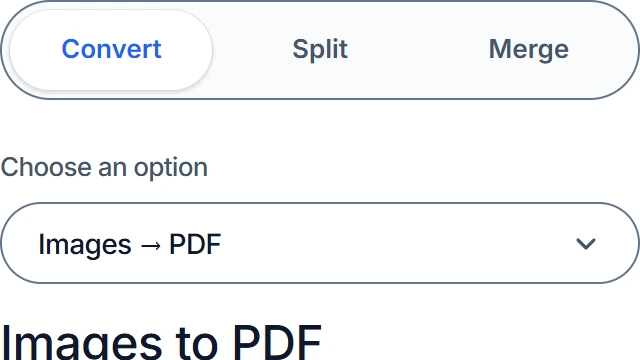
Open Images to PDF
Open Images to PDF in the converter.
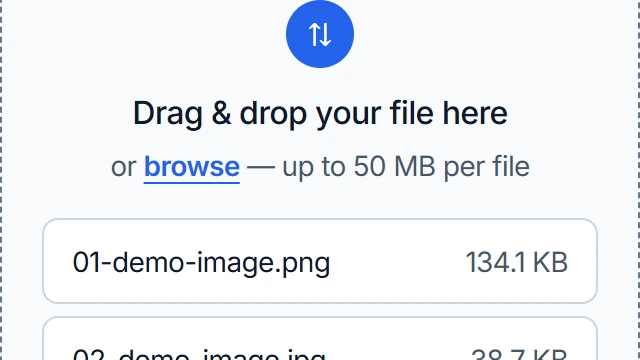
Select and check the images
Select JPG, PNG, or WebP files up to 50 MiB each, then check their natural filename order.
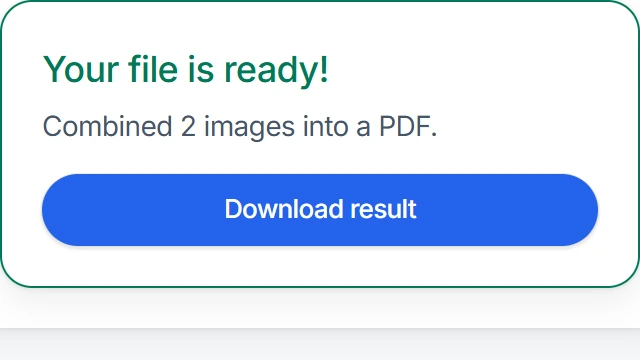
Convert, download, and review
Convert, download the PDF, and review every page for order, scale, margins, orientation, and transparency.
Accepted formats and processing limits
The tool accepts JPG, PNG, and WebP images. Each file may be up to 50 MiB. After decoding, each image is limited to 16,384 pixels in either dimension and 40,000,000 total decoded pixels. Large batches also consume browser memory, so practical capacity can be lower depending on the device and the decoded images.
Rename and rotate source files before selection. Natural filename sorting determines page order, so 2-page.jpg comes before 10-page.jpg. Numeric prefixes such as 01-cover.jpg, 02-form.png, and 03-photo.webp make the intended sequence explicit.
How images are placed on A4 pages
The output uses portrait A4 pages and puts one image on each page. Placement starts 10 mm from the top and 10 mm from the left. Natural image dimensions are interpreted at 96 CSS DPI. An image that would exceed the available page area is scaled down proportionally; a smaller image is not enlarged.
This downscale-only behavior preserves aspect ratio and avoids forced upscaling, but it can leave substantial white space around small sources. Wide images remain on portrait pages rather than causing landscape pages. Crop, rotate, or resize source files first if a different composition is required.
Image quality, alpha, text, and metadata
The PDF contains image pages. It does not run OCR and does not add searchable or selectable text. Visible words remain pixels, which is unsuitable for a document that must support text search, copying, semantic accessibility, or reliable assistive-technology navigation.
Source metadata is not explicitly copied into the PDF. Do not assume camera information, location, copyright, timestamps, color-profile metadata, or other ancillary fields survive. Binary inspection found an alpha soft mask for the tested PNG in the sample below, but this does not guarantee alpha handling for other images, formats, or browsers. Visually check transparent and partially transparent areas in every downloaded PDF. The interface screenshots do not prove output fidelity.
Tested September 14, 2026 in Chrome
Three named images produced three ordered A4 pages
Using the live repository converter code, we supplied browser Files named 01-logo.png (images/JustLogo.png), 02-logo.jpg (samples/sample-png-to-jpg.jpg), and 03-interface.webp (images/walkthrough/image-tools-choose.webp). After conversion and download, we inspected file size, page count and geometry, visible page order, and PDF binary objects.
/SMask associated with the tested PNG, demonstrating an alpha soft mask in this particular output.This single result is not a guarantee for every image format or browser. Visually check the downloaded PDF, especially transparent and partially transparent areas.


Inspect the varied-aspect-ratio test for exact page boxes produced from square, portrait, landscape, and panoramic sources.
When this converter is unsuitable
Use another workflow when you need OCR, searchable text, tagged accessibility, landscape or mixed page sizes, edge-to-edge placement, configurable margins, image enlargement, strict print color management, archival metadata preservation, or guaranteed alpha handling. It is also a poor substitute for a source document when the content will need editing later.
For records or submissions, keep the original images and inspect every generated page. If the receiving organization specifies PDF/A, particular DPI, embedded profiles, bleed, or accessibility conformance, use software that explicitly validates those requirements.
Browser processing and external resources
Image decoding and PDF assembly happen in the browser; selected image content is not posted to the document-conversion API. The page can still request third-party page assets such as hosted fonts and other external resources, so browser processing should not be interpreted as fully offline operation. Consult the Privacy Policy and your organization's rules for confidential material.
Troubleshooting
The pages are in the wrong order
Natural filename order controls the result. Rename files with zero-padded numeric prefixes, select them again, and verify the displayed list before converting.
An image is small or surrounded by white space
Small images are not enlarged, and all images sit on portrait A4 pages. Resize the source deliberately if enlargement is acceptable, or use a page-layout tool for custom placement.
A file under 50 MiB fails
It may exceed 16,384 pixels on one side or 40,000,000 decoded pixels in total. Very large batches can also exceed available browser memory. Resize sources or process fewer files.
Text cannot be selected
The tool does not perform OCR. Use an OCR workflow and review the recognized text when searchability or accessibility is required.
Plan the page layout before converting
For preparation advice, read how to prepare images for A4. For measured placement of square, portrait, landscape, and panoramic sources, inspect the four-shape layout test. This tool does not provide custom margins, page orientation, or enlargement controls.
Assemble the PDF and inspect every page
Check filename order before converting, then verify scale, margins, orientation, and transparency in the result.
Combine images into PDF