JPG versus PNG and images to PDF: a tested format guide
The best image format depends on the pixels you have and the result you need. We tested photos, small text, flat graphics, transparency, and varied aspect ratios through Converttwo to measure the tradeoffs instead of relying only on general format rules.
Maintained by Converttwo's independent operator using documented converter behavior and controlled tests. Read how the content is tested.
Choose by the content, not just the extension
- Photographs without transparency: compare JPG file size and visible detail.
- Text, graphics, or transparent artwork: favor PNG when sharp edges or alpha matter.
- A set of scans to share as one document: plan image order and A4 placement before creating a PDF.
This guide explains the tradeoffs and shows controlled tests. For upload steps and exact limits, read the PNG-to-JPG instructions, JPG-to-PNG instructions, or Images-to-PDF instructions.
Supported images and browser processing
The image tools use browser decoding, so a small compressed file can still require a large amount of memory. Each selected file is limited to 50 MB, and oversized decoded images are rejected. The individual tool instructions list accepted formats, dimension limits, and file-count requirements.
Image decoding, canvas conversion, and PDF creation happen in the browser; selected image content is not posted to the document-conversion API. The page still loads software and fonts from third-party content networks, so it is not an offline tool. Review the Privacy Policy if the images contain confidential or regulated information.
JPG versus PNG
JPG and PNG can display the same rectangular image, but they encode it differently. JPG is designed around lossy compression: it removes visual information in ways that are often difficult to notice in photographs. PNG uses lossless compression, preserving the exact decoded pixel values and supporting transparency.
| Characteristic | JPG | PNG |
|---|---|---|
| Best for | Photographs, scans, gradients, natural textures | Logos, diagrams, text, screenshots, transparency |
| Compression | Lossy; smaller files are possible | Lossless; repeated saving does not add compression artifacts |
| Transparency | Not supported | Supported with an alpha channel |
| Typical weakness | Artifacts around sharp edges and text | Large files for detailed photographs |
Use JPG for continuous-tone images
A photograph contains gradual changes in color and brightness. JPG compression handles that material efficiently, often creating a much smaller file than PNG. It is a practical choice for camera photos, scanned receipts, product images without transparent backgrounds, and images intended for email or web publishing.
Lossy compression is cumulative. Opening a JPG, editing it, and saving it as JPG again can introduce another generation of artifacts. Keep a high-quality original when the image will be edited repeatedly. Convert a finished copy for distribution rather than using the converted file as the only master.
Use PNG for sharp boundaries and exact pixels
PNG is usually the stronger choice for interface screenshots, charts, icons, diagrams, and images containing small text. Sharp one-pixel lines and flat color regions remain clean. PNG is also appropriate when a logo or product cutout must be placed over different backgrounds.
Converting a JPG to PNG does not restore detail already discarded by JPG compression. The new PNG stops additional lossy encoding, but block artifacts, ringing, and blurred edges from the source remain visible. Format conversion cannot recreate information that is no longer present.
Tested September 14, 2026
Controlled test: the content determined whether JPG was smaller
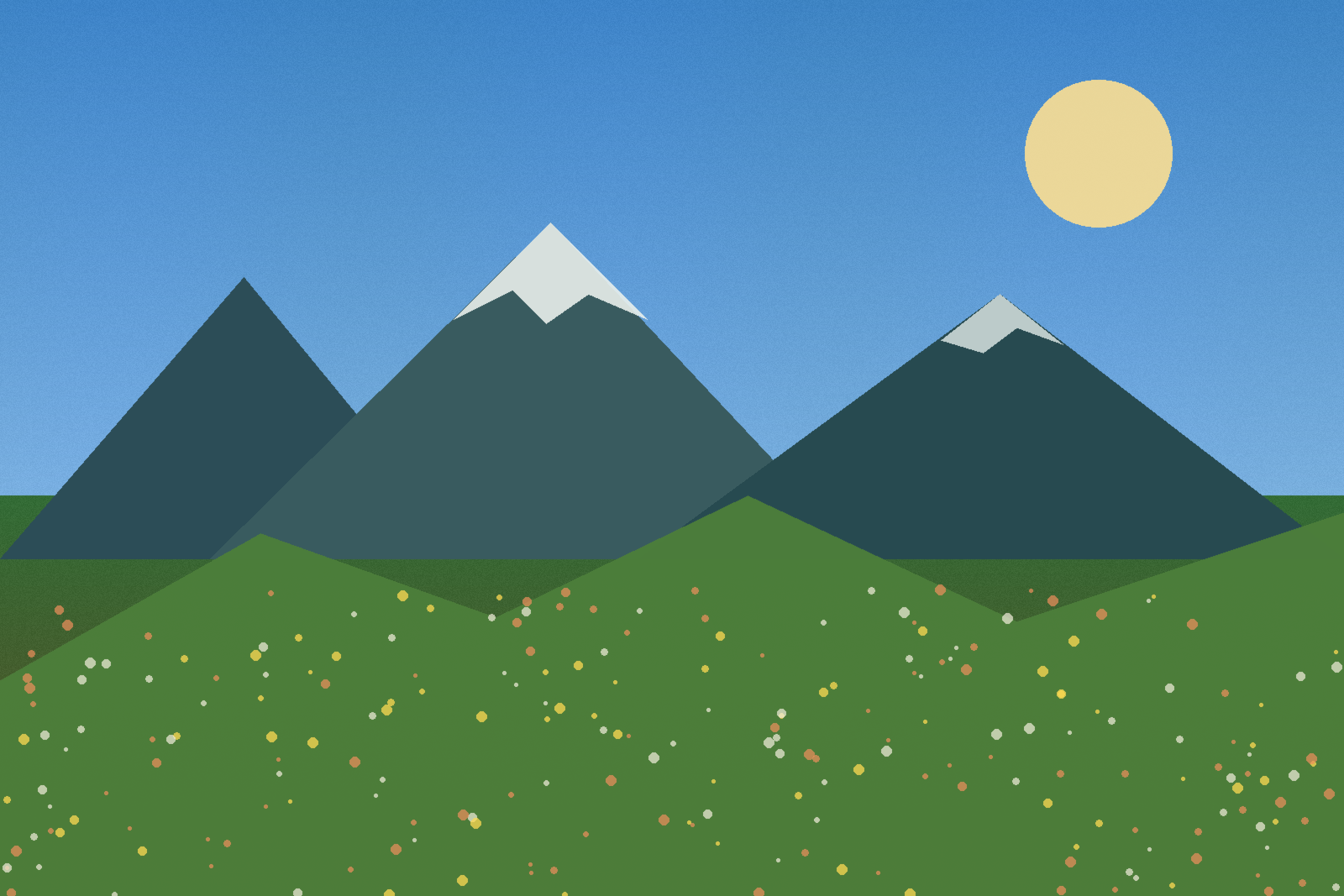
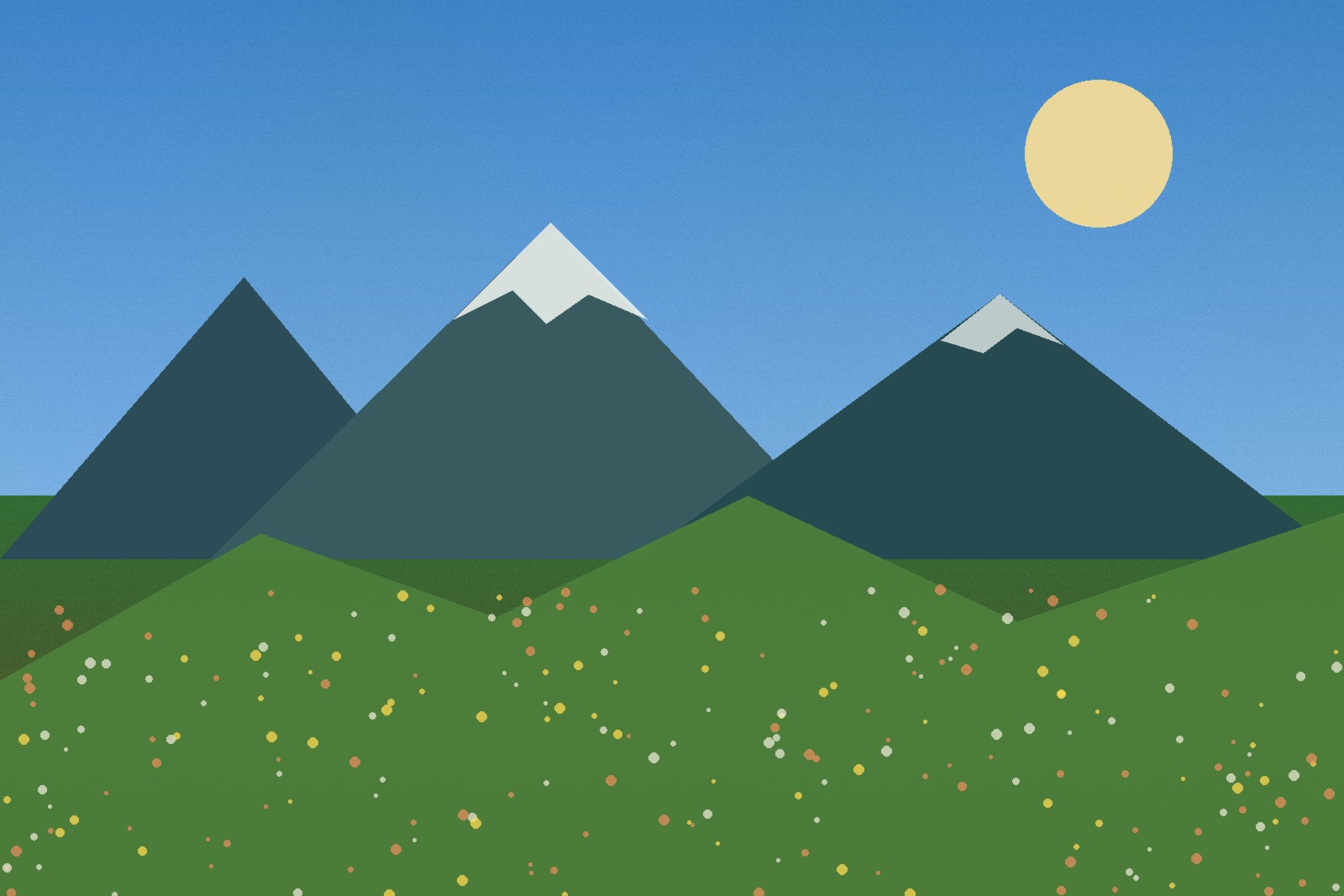
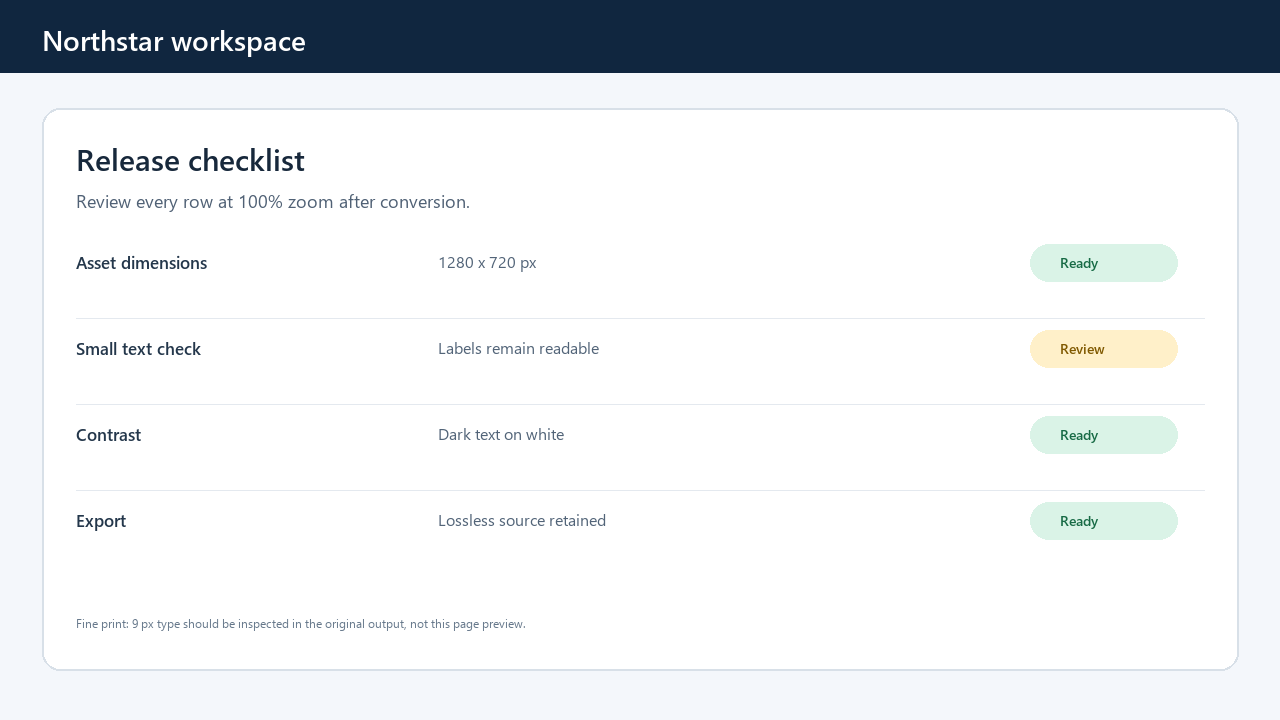
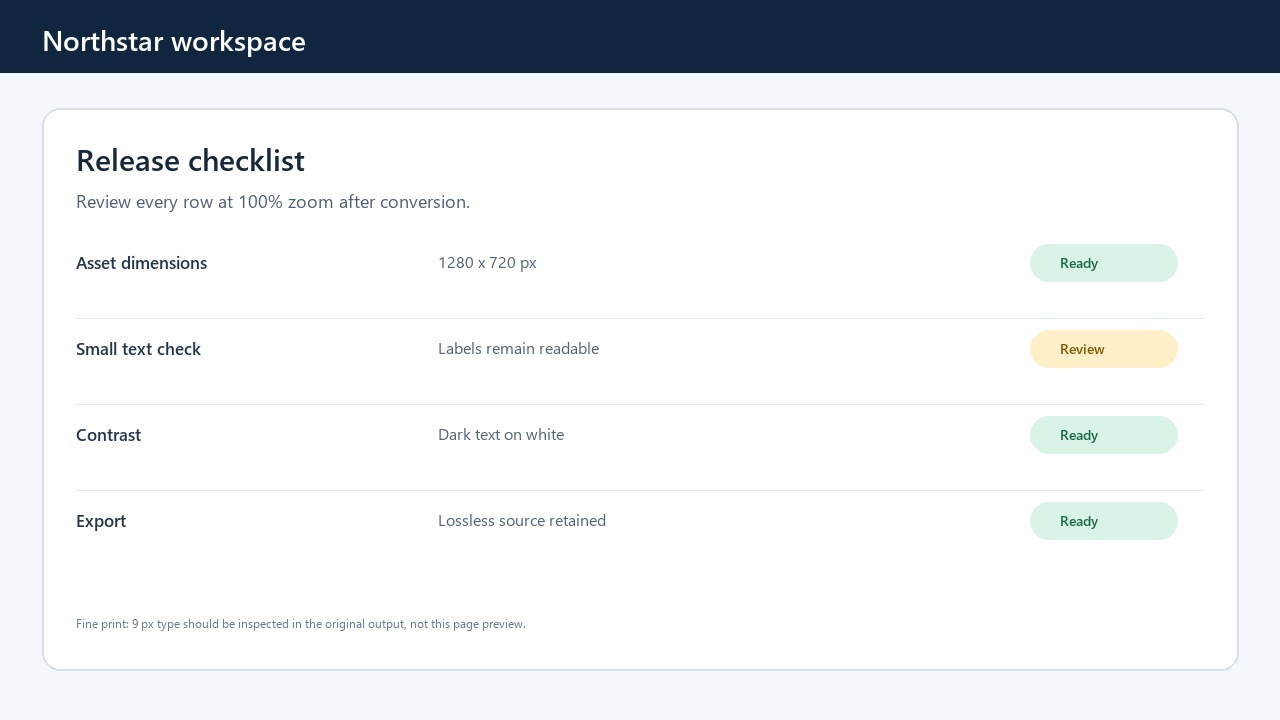
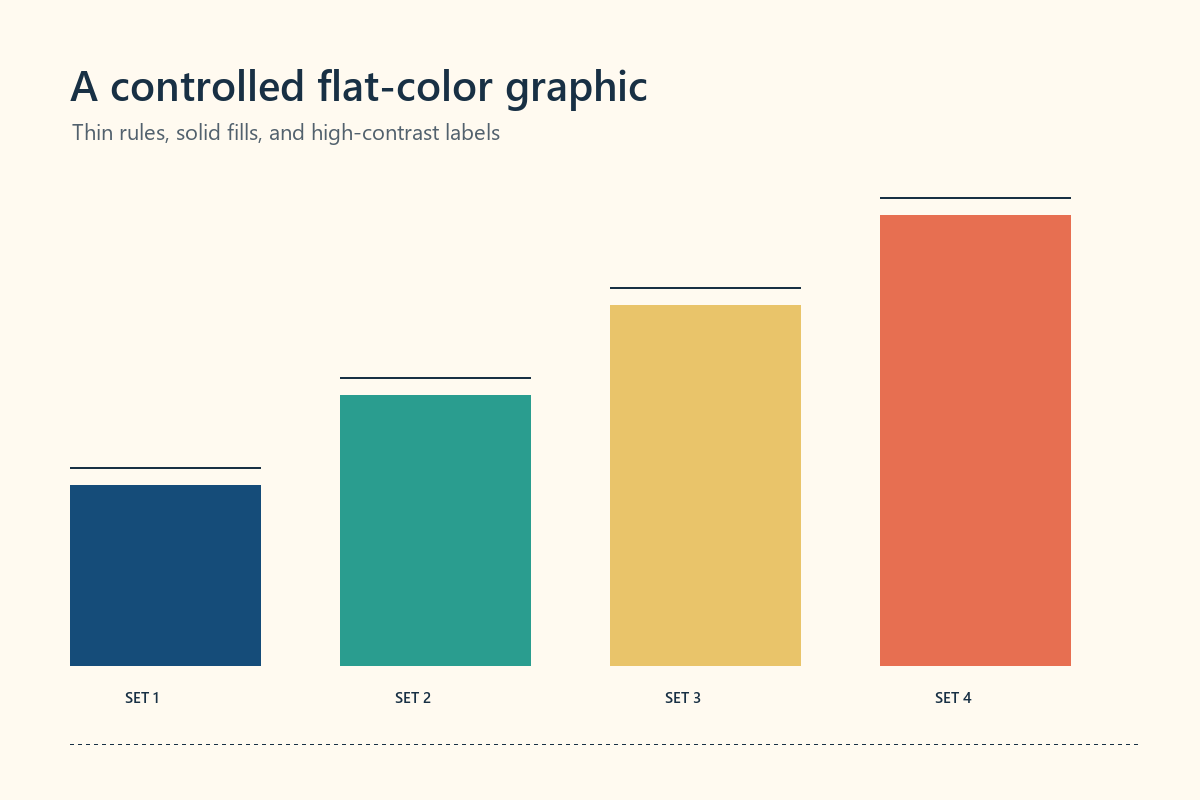
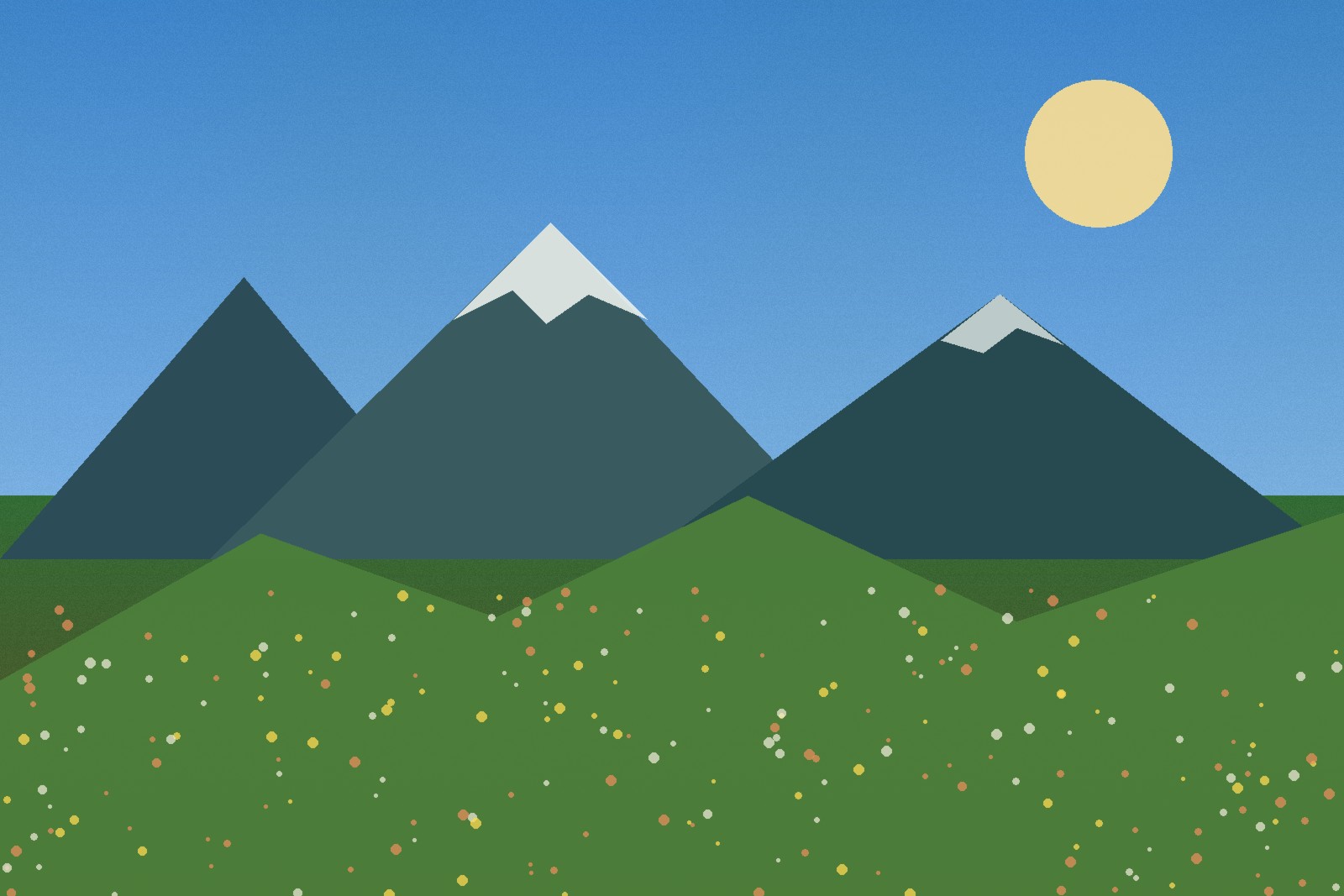
We generated four original PNG sources: a 1600 x 1067 photo-style landscape, a 1280 x 720 interface screenshot with small text, a 1200 x 800 flat-color graphic, and a 1000 x 1000 RGBA design with full and partial transparency. Each file was converted through the current Converttwo pngToJpg browser function in Chrome 152.0.7977.83. We also converted separate JPG sources for the photo and screenshot through jpgToPng.
| Controlled content | Source PNG | Output JPG | Size result | Mean channel error |
|---|---|---|---|---|
| Photo-style landscape | 888,003 B | 202,069 B | JPG was 77.2% smaller | 1.380 |
| Small-text screenshot | 36,011 B | 55,079 B | JPG was 52.9% larger | 0.375 |
| Flat-color graphic | 16,793 B | 44,441 B | JPG was 164.6% larger | 0.911 |
| Partial transparency | 22,560 B | 39,592 B | JPG was 75.5% larger | 0.445 after white flattening |
The photograph followed the familiar rule: JPG removed substantial data and produced the smaller file. The other three results did not. Their source PNGs compressed repeated colors and empty regions efficiently, so JPG was both larger and lossy. File extension alone therefore does not predict size.
For each PNG-to-JPG comparison, we decoded both files, flattened source alpha onto white where necessary, and compared RGB channels. Mean absolute error uses a 0-255 channel scale. The screenshot’s text remained readable in this test, but high-contrast edges acquired small pixel differences. The flat graphic changed 99.92% of pixels by at least one channel value even though its mean difference was only 0.911, showing why “pixels changed” and “visually severe” are not the same claim.
JPG-to-PNG preserved decoded pixels but increased file size
The 183,916-byte photo JPG became a 1,380,241-byte PNG, 7.50 times the source size. The 61,623-byte screenshot JPG became a 184,109-byte PNG, 2.99 times the source size. In both files, decoded RGB pixels matched exactly before and after conversion, but the PNG outputs were fully opaque RGBA files. This confirms that JPG-to-PNG changed the container without restoring lost detail or creating transparency.
What happens to transparency
PNG can store an alpha value for each pixel, allowing fully transparent and partially transparent areas. JPG stores only color values. When Converttwo converts PNG to JPG, it first fills the canvas with white and then draws the PNG over it. Transparent areas therefore become white in the finished JPG.
This behavior is predictable, but it may not suit every design. A white logo intended for a dark background can disappear when flattened onto white. Before converting, preview the transparent image against white. If the result needs a different background, add that background in an image editor before creating the JPG.

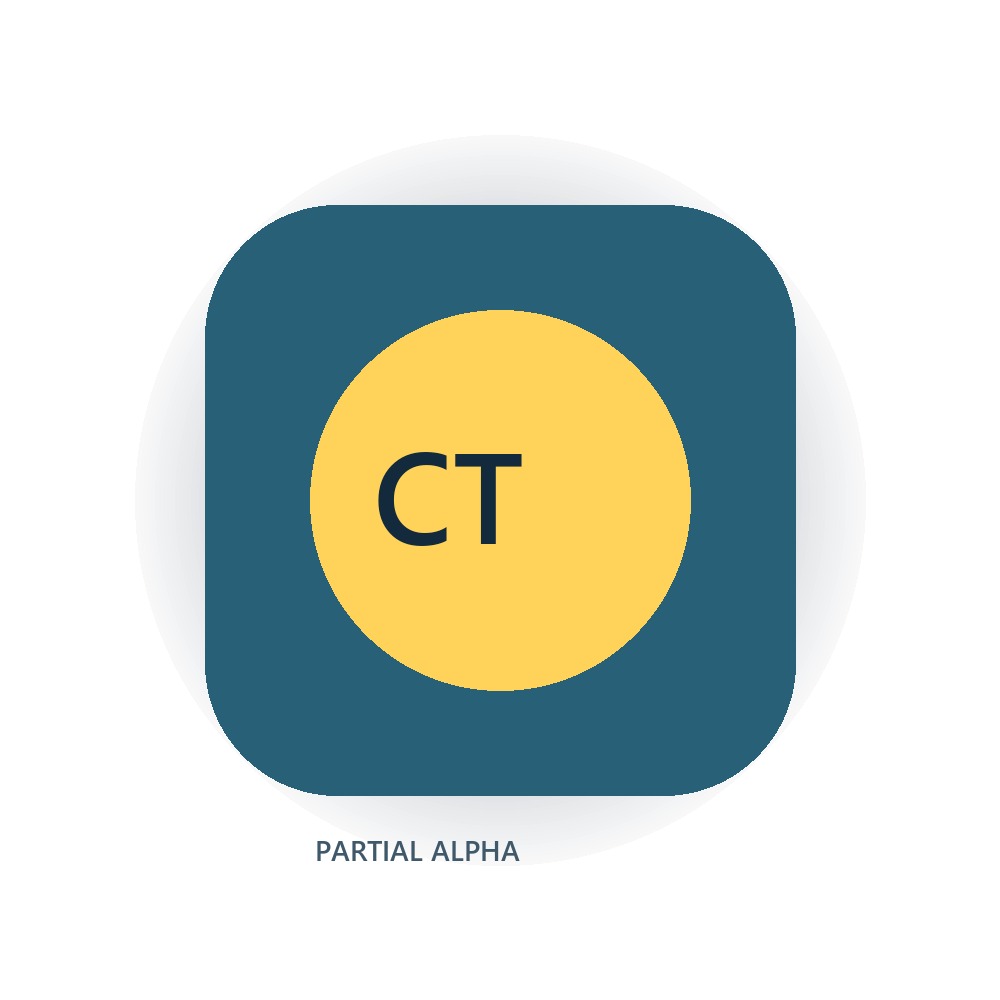
A transparent pixel reveals whatever is behind the image. A white pixel always displays white. Once transparency is flattened into JPG, changing the background requires editing or masking the image again.
Resolution, dimensions, and perceived quality
Pixel dimensions describe how much image information is available. A 3000 × 2000 image contains six million pixels regardless of whether it is saved as JPG or PNG. Changing the format alone does not increase those dimensions. It changes how the existing pixels are encoded.
For screens, the required dimensions depend on the space where the image will appear. A thumbnail does not need camera-sized dimensions. For print, physical size and pixel density work together. A 2400-pixel-wide image printed at 300 pixels per inch is about eight inches wide before resampling.
Why enlarging does not create real detail
Upscaling asks software to invent new pixels between existing ones. It can smooth jagged edges but cannot reveal genuine letters, facial details, or texture that the source never captured. If small text is unreadable in the original scan, changing PNG to JPG or placing it in a PDF will not make it legible.
Browser dimension limits
Extremely large images can exceed browser canvas or memory limits. Converttwo rejects an image when either dimension is greater than 16,384 pixels or when its decoded pixel area exceeds 40 million pixels. A 7000 × 6000 image, for example, decodes to 42 million pixels and is rejected even if its compressed file size looks modest. Resize unusually large panoramas or scans before conversion.
Preparing images for an A4 PDF
The Images-to-PDF tool accepts JPG, PNG, and WebP files and creates one portrait A4 page per image. Each image is placed with a 10 mm margin and scaled down proportionally when necessary. Smaller images are not enlarged beyond their original pixel dimensions. This avoids forced upscaling but can leave extra white space around a small source.
Order images by filename
Natural filename order becomes the page order. Rename files with numeric prefixes such as 01-cover.jpg, 02-receipt.jpg, and 03-signature.png, then confirm the selected-file list before converting. Check that portrait images are already rotated correctly; the output pages remain portrait even when a wide image is placed on them.
Prepare scans consistently
A document assembled from phone photos looks more professional when every page has similar cropping, brightness, and perspective. Straighten tilted pages, remove unnecessary desk background, and use the same orientation before combining them. If readable text is the goal, avoid aggressive JPG compression and inspect the smallest characters at 100% zoom.
Understand what an image PDF can and cannot do
An image-based PDF is useful for sharing a set of scans in one file. The visible words are pixels unless OCR has been applied separately, so they might not be searchable, selectable, or accessible to screen readers. For records that need text search or accessibility, use an OCR workflow and review the recognized text.
Tested September 14, 2026
Controlled Images-to-PDF test: four shapes on portrait A4 pages
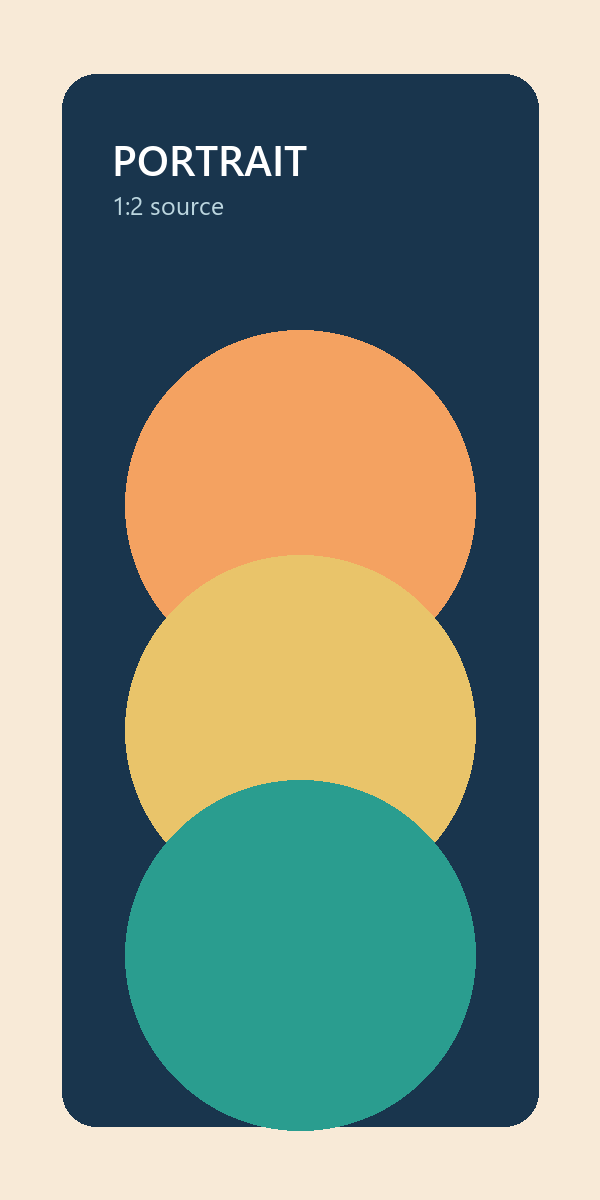
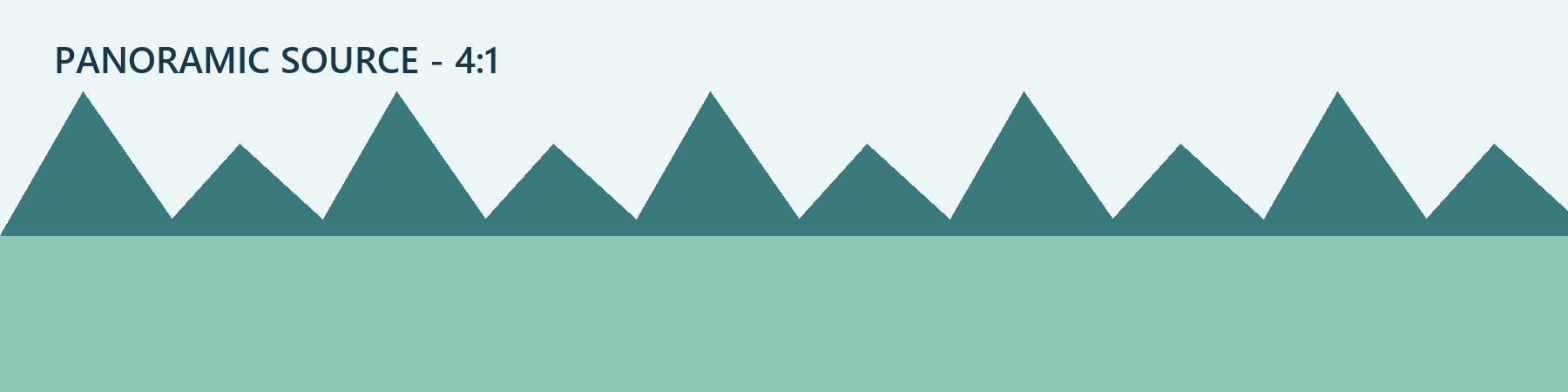
We selected four files in numbered order: a 1000 x 1000 transparent square PNG, a 600 x 1200 portrait PNG, a 1600 x 1067 landscape JPG, and an 1800 x 450 panoramic PNG. Converttwo produced a 517,893-byte PDF with four pages in that same order.
| Page | Source | Placed box, left/top/right/bottom | Observed behavior |
|---|---|---|---|
| 1 | 1000 x 1000 PNG | 28.35 / 28.35 / 566.93 / 566.93 pt | Scaled to available width |
| 2 | 600 x 1200 PNG | 28.35 / 28.35 / 420.95 / 813.54 pt | Scaled to available height; not horizontally centered |
| 3 | 1600 x 1067 JPG | 28.35 / 28.35 / 566.93 / 387.52 pt | Scaled to width with white space below |
| 4 | 1800 x 450 PNG | 28.35 / 28.35 / 566.93 / 162.99 pt | Aspect ratio retained with substantial white space |
Every page began at 28.35 points from the left and top, which is the configured 10 mm margin. Images were aligned to that top-left point rather than centered. All pages contained one displayed image and zero searchable words.
A portrait image that reaches the bottom margin occupies only part of the page width because the converter preserves its proportions and does not center it. A panorama similarly remains shallow near the top. Prepare page-shaped source images first if balanced white space matters.

PDF pages exported as JPG or PNG
PDF page export is a different test from changing an existing image’s extension. PDF.js first renders text, vectors, and embedded images onto a white canvas; the browser then encodes that canvas. Our separate three-page PDF-to-JPG versus PNG test found identical 1224 x 1584 dimensions in both formats. The PNG ZIP was 1,008,947 bytes and the JPG ZIP was 235,968 bytes, with the largest size gap on the photographic page.
A reliable conversion and review workflow
- Keep the highest-quality original available.
- Choose JPG for photographic content or PNG for sharp graphics and transparency.
- Preview transparency against the background that JPG conversion will use.
- Check dimensions and rotate or crop images before combining them into PDF.
- Select the converter and verify every listed filename.
- Download the result with a distinct name rather than overwriting the original.
- Inspect at 100% zoom and test the file in its intended destination.
Common questions and mistakes
Why is my PNG larger than the JPG?
Lossless PNG must preserve the decoded pixel values, while JPG can discard subtle information. For a photograph, that difference can be dramatic. For a simple logo with few colors, PNG may still be compact.
Why did the converted image keep the same width and height?
The JPG-to-PNG and PNG-to-JPG tools preserve source pixel dimensions. They change encoding, not geometry. Use an image-resizing tool when the goal is a new width or height.
Why is text blurry after PNG-to-JPG conversion?
JPG compression groups visual information and is less effective around high-contrast edges. Small dark text on a light background exposes those artifacts. Keep text-heavy graphics as PNG when file size permits.
Why does the PDF show margins?
Images are fitted within an A4 page with a 10 mm margin. This prevents content from touching the page edge and keeps the full image visible. It is not a border added to the original image file.
Choose the format, then convert
Start with the content type: photographs usually favor JPG, while sharp graphics and transparency favor PNG.
Convert an image