Split output and limits
Understand numbered one-page files, ZIP extraction, and which document-level features need checking.
Read Split PDF instructionsOne converter for everyday file formats
Convert documents and images, export PDF pages, or split and merge PDFs from one place. No sign-up is required.
Drag & drop your file here
or browse — up to 50 MB per file
Convert PDF, Word, and image files up to 50 MB with layout-aware document processing.
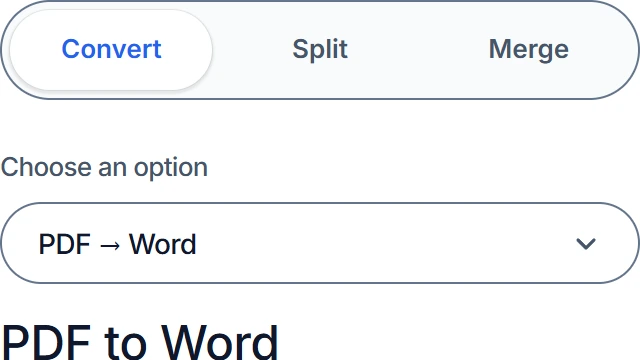
Select the format or PDF tool you need.
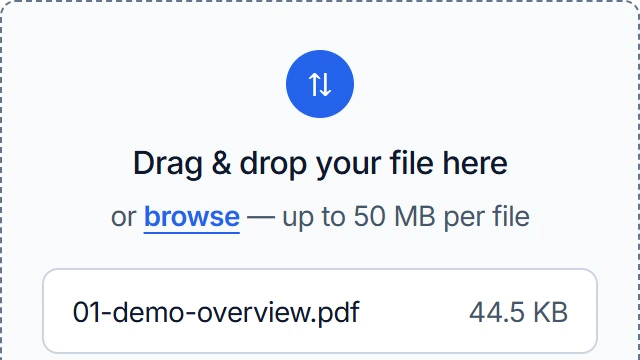
Browse or drag your files into the upload area. Maximum 50 MB per file.
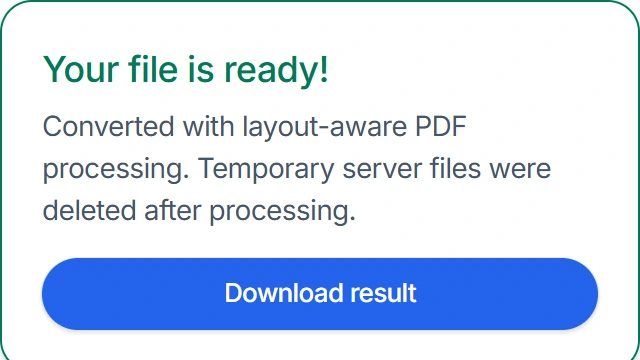
Click Convert, then download and check your result.
Available conversions
Choose a tool below to select it in the converter above. All conversion controls stay on this main page.
Ready to process your PDFs? Choose a tool above. These instructions explain output files, ordering, and document features before you start.
Understand numbered one-page files, ZIP extraction, and which document-level features need checking.
Read Split PDF instructionsCheck file-order controls, mixed page sizes, flattened forms, and the difference between page content and document structure.
Read Merge PDF instructionsPractical file guides
A successful conversion depends on what is inside the source file and what you need from the result. These guides explain the tradeoffs before you convert.
Learn why text-based and scanned PDFs behave differently, what happens without OCR, and which layouts need the closest review in Word.
Read the PDF to Word guidePrepare a DOCX for conversion, reduce font surprises, and check pagination, links, complex objects, and print output.
Read the Word to PDF guideChoose page copying or image export, understand what each retains, and review the output for sharing or print.
Read the PDF tools guideCompare transparency, compression, file size, and resolution so photographs, logos, screenshots, and scanned pages keep the qualities that matter.
Read the image format guideNo sign-up and no watermark. Service safeguards may limit unusually frequent requests.
Download tested sources and outputs to check the results and limitations yourself.
Select files up to 50 MB. Very large or complex documents can take longer to process.
Any modern browser. No software to install.
Before you convert
Choose a conversion above. For format decisions and detailed review steps, use the guides.
Image conversions, PDF page exports, Split, and Merge run in your browser. PDF to Word and Word to PDF upload the document for server processing. See file handling and privacy for details.
This converter does not perform OCR. Use OCR first if the source is a scan and you need editable text. The PDF source-type guide explains how to check.
Choose PNG to JPG or JPG to PNG when changing an image format, Images to PDF when combining images into a document, or PDF to JPG/PNG when exporting document pages. Compare quality and transparency in the image format guide.
Yes, if the source has it. Forms are flattened and some document-level features are not retained. Check the PDF feature limits before replacing an original.
Keep the original and compare the result's content, page count, order, and appearance. The format-specific guides explain which checks matter for your task.