PDF to Word: how to get a useful editable document
A Word file made from a PDF is a reconstruction, not the original document reopened. The quality of that reconstruction depends first on what the PDF contains, then on how much page structure has to be inferred.
Use this guide to check whether the source is suitable and review the editable draft. For measured results, read the text-versus-scan test or the complex-layout test. Ready to proceed? Open PDF to Word.
Maintained by Converttwo's independent operator using documented converter behavior and controlled tests. Read how the content is tested.
PDF to Word walkthrough
-
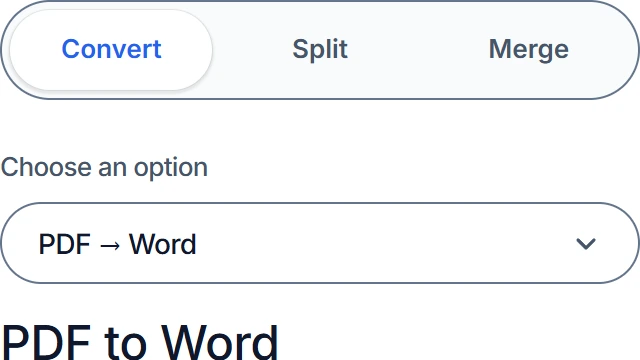
Choose your conversion
Select PDF to Word.
-
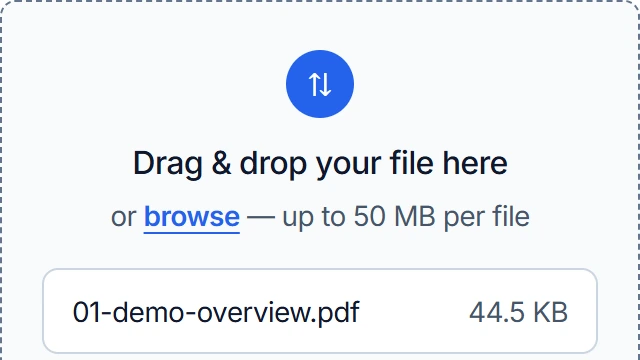
Select your files
Choose one text-based PDF, up to 50 MB.
-
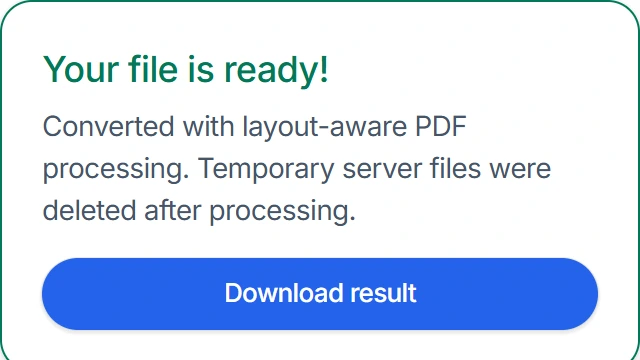
Convert and download
Click Convert, then download the DOCX and compare it with your PDF.
Start by identifying the kind of PDF you have
Two PDFs can look identical in a viewer while giving a converter very different material to work with. One may contain real characters, font information, and separate images. The other may contain a single scan for each page. Before converting, try selecting a sentence one word at a time and search for a phrase you can see.
Selection is a clue rather than a guarantee. A PDF can have a text layer with scrambled reading order, and a scan can have hidden OCR text that does not line up perfectly with the image. Still, this quick check usually tells you whether editable text is available at all.
| Source type | What you may notice | Likely Word result | Best preparation |
|---|---|---|---|
| Digitally created PDF | Words can be selected and searched; text stays sharp when zoomed | Text is more likely to become editable paragraphs, although layout can still shift | Check reading order, columns, tables, and embedded fonts |
| Image-only scan | Selecting text does nothing or selects the entire page as one image | The page does not become recognized, editable text because this converter has no OCR | Use a separate OCR process first when editable words are required |
| Mixed document | Some pages are searchable while signatures, inserts, or later pages are not | Editability can vary from page to page | Test representative pages from the beginning, middle, and end |
| Graphic or form-heavy PDF | Text sits in boxes, over artwork, or beside many rules and fields | Content may be split among text boxes, shapes, tables, and images | Plan for manual cleanup and retain the PDF as a visual reference |
Why a scan needs a separate OCR step
Optical character recognition examines pixels and guesses which letters they represent. The PDF-to-Word service described here does not perform that recognition. It uses pdf2docx to rebuild content already represented in the PDF; it cannot turn a photograph of a sentence into reliable typed words. If the source is a scan, OCR it elsewhere first and proofread names, numbers, punctuation, and reading order before treating the text as authoritative.
What has to be rebuilt when PDF becomes Word
A PDF records a finished page: coordinates, drawing instructions, font fragments, and placed images. It may not say that three nearby lines form one paragraph or that a set of rules and text fragments forms a table. A DOCX, by contrast, expects editable paragraphs, runs, lists, table cells, sections, headers, and positioned objects. Conversion has to infer those relationships from the page.
Ordinary single-column documents with common fonts give that inference fewer opportunities to go wrong. A report with narrow sidebars, floating captions, footnotes, or overlapping artwork asks the converter to choose both structure and reading order. The output can be useful for editing without matching every line break from the fixed PDF.
Columns and reading order
In a two-column PDF, the page may store text according to drawing sequence rather than human reading sequence. Headings that span both columns add another decision. In Word, inspect where one column ends, where the next begins, and whether a sidebar has been inserted into the main argument. Copying a few paragraphs into a plain-text editor can make an ordering problem easier to spot.
Tables, fonts, and images
A visible table is sometimes just a collection of lines with separately positioned words. It may become a real Word table, a group of text boxes, or ordinary paragraphs with spacing. Embedded subset fonts can lack a straightforward match on the editing computer, changing character widths, bullets, or symbols. Images may be anchored differently because Word must decide how text wraps around an object as surrounding content changes.
PDF-to-Word is most useful when you need to revise or reuse content. If the fixed appearance is the record that matters, keep the source PDF and use the DOCX as a working copy rather than as a replacement master.
Supported files, limits, and privacy
Converttwo accepts one .pdf file per PDF-to-Word conversion, with a maximum size of 50 MB. It does not submit a batch of PDFs in one job. A valid extension alone does not ensure a usable result: damaged files, restricted files, image-only pages, and unusually complex documents may fail or may need preparation in another application.
The selected PDF is uploaded to the conversion server over HTTPS. The server moves it into an isolated temporary workspace and runs pdf2docx to create the DOCX. The service is designed to remove temporary input, output, and working files immediately after processing, and cleanup is also attempted when the conversion returns an error. This is server processing, not an offline or browser-only workflow.
Temporary deletion does not replace your own document-handling rules. If a file contains confidential, regulated, or third-party information, confirm that uploading it to a conversion service is permitted before proceeding. The Privacy Policy explains the site's broader data practices.
Review the DOCX as an editable draft
Open the Word result beside the PDF rather than checking it from memory. Start with pages that contain the hardest material, not only the clean title page. A short targeted review usually reveals whether the document needs small corrections or a different source and workflow.
- Search for a distinctive sentence and confirm that it can be edited as text.
- Read across column changes, sidebars, captions, and footnotes to verify the order.
- Compare headings, paragraph breaks, lists, indentation, and numbered items.
- Inspect table rows, merged cells, borders, wrapping, and text near page edges.
- Check names, dates, totals, formulas, symbols, and other details where one character matters.
- Compare images and captions, then move a nearby paragraph to see whether anchoring behaves sensibly.
- Look at headers, footers, page numbers, section changes, and the final line of every page.
- Save the edited DOCX under a new name and retain the source PDF for comparison.
Do not spend time forcing the editable file to reproduce every original page break unless that is genuinely required. Once text is revised, Word will reflow it anyway. Prioritize correct words, usable structure, and stable styles before cosmetic page matching.
Tested September 9, 2026
Tested example: a six-page PDF converted to Word
We converted a 13.0 KB text-based PDF with a title page, section headings, body paragraphs, repeated headers, footers, and page numbers through the same pdf2docx workflow used by Converttwo. The resulting editable DOCX was 39.3 KB.
This sample is intentionally clean and does not contain scans, tables, columns, or floating graphics. It demonstrates a favorable text-document case rather than guaranteeing the same result for every PDF.
Troubleshooting PDF-to-Word problems
The words are visible but cannot be edited
The page is probably an image or the PDF lacks a usable text layer. Search for a visible phrase in the source. If the viewer cannot find it, this converter cannot recognize it because no OCR step is included. Run OCR with a suitable service or application, then verify the recognized text before converting again.
Sentences arrive in the wrong order
This commonly appears around columns, marginal notes, floating labels, and text drawn in separate blocks. Rebuild that portion with ordinary Word paragraphs or a deliberate table, then apply heading and body styles. When much of the document is affected, locating the original editable file is usually faster than repairing every block.
A table is broken into text boxes or loose lines
Use the PDF as a reference and create a new Word table with the required rows and columns. Paste text into cells in small groups and check merged headings separately. A rebuilt semantic table is easier to edit and more robust than preserving dozens of positioned fragments.
Fonts, bullets, or symbols look different
The PDF may use an embedded subset, a symbol font, or a typeface that is unavailable on the computer opening the DOCX. Replace affected text with an installed font and use Word's list controls for bullets and numbering. After changing a font, review line wrapping throughout the section rather than correcting only the first visible difference.
Pictures cover text or move during editing
Inspect the picture's wrapping and anchor settings in Word. Inline placement is often easier to maintain for a simple report, while a designed brochure may require deliberate floating positions. Make a copy before changing several anchors so you can compare approaches without losing the initial result.
Common questions before converting
Will a text-based PDF produce a perfect Word copy?
No exact match should be assumed. Selectable text gives the converter better source material, but complex columns, tables, fonts, images, spacing, and page geometry can still differ when fixed page objects become editable DOCX structures.
Can several PDFs be combined into one Word file?
The PDF-to-Word conversion accepts one PDF at a time. If several files belong in one editable document, convert and review them separately, then combine the cleaned Word content with intentional section breaks and consistent styles.
What is the best source for an editable revision?
If the original DOCX or another editable source still exists, use it. A PDF is an excellent fixed reference, but reconstructing its editing structure introduces work that the original document has already solved.
Work from the strongest source available
Check that the PDF contains selectable text, keep the original nearby, and plan to review the DOCX before editing or sharing it.
Open the PDF to Word converter