Split a PDF into individual page files
Turn every page of one PDF into its own numbered, one-page PDF. The complete set downloads in a ZIP so pages stay together without triggering a separate browser download for each file.
Separate every page
Select one PDF up to 50 MiB, then extract and review the numbered output set.
Open the Split PDF toolThis page covers the Split controls and output files. For choosing between page copying and image export, read the PDF operation guide. To inspect an actual output, jump to the six-page split test and downloads.
How to split every PDF page
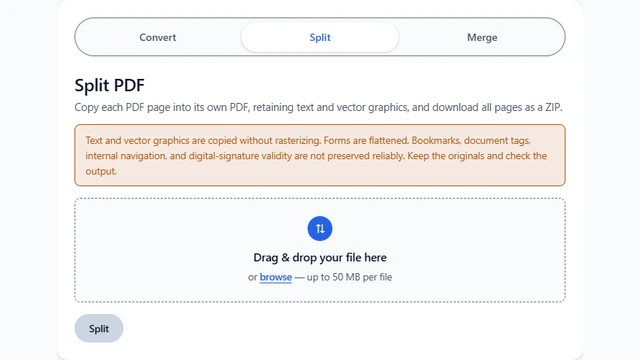
Open Split PDF
Open the converter with Split selected.
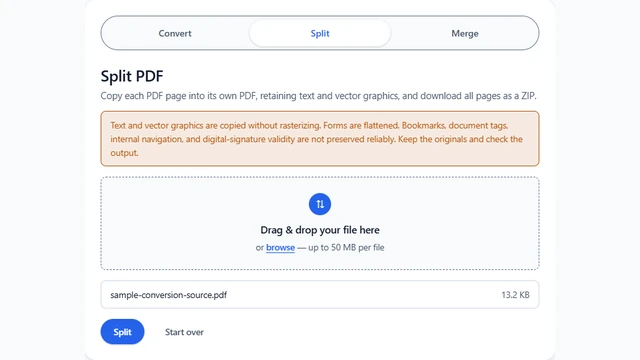
Select one PDF
Choose exactly one PDF up to 50 MiB and confirm its filename.
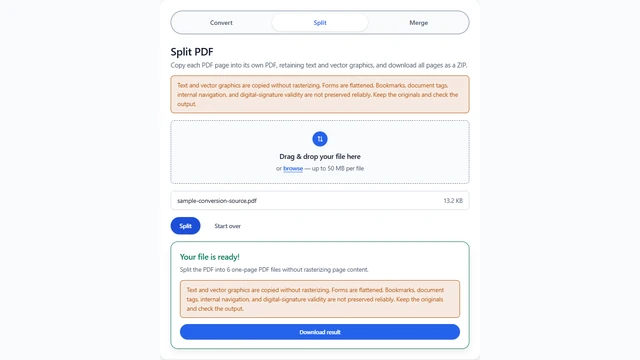
Split and review
Click Split, download and extract the ZIP, then compare every numbered page with the source.
The current operation processes every page. It does not accept a custom range, odd/even selection, or a request for only one chosen page.
How the numbered output is organized
Each source page becomes a separate one-page PDF. If the source is report.pdf, filenames follow the pattern report-page-1.pdf, report-page-2.pdf, and so on. All of those PDFs are packaged in one ZIP. Keep the page numbers intact until review is complete; renaming files too early can hide a missing or misplaced page.
Splitting does not reduce the source to a selected excerpt. If only pages 8 through 10 are needed, extract the complete ZIP, retain the corresponding numbered files, and securely remove the rest where appropriate. Preserve the original PDF separately.
Visible page quality versus PDF structure
Each page and its resources are copied using pdf-lib. Text, vector graphics, page dimensions, crop boxes, and rotation are retained without canvas rendering or JPEG recompression. Image-only scans remain images; no OCR is added.
Forms are flattened on an in-memory copy before splitting. Interactive fields are not retained. Document-level bookmarks, tags, layers, attachments, metadata, internal navigation, and digital-signature validity are not reliably preserved. External links and annotations may copy with pages, but verify them in a PDF viewer.
Separate PDFs may duplicate resources previously shared across pages, so their combined size can exceed the source even without rasterization. Keep the source and review the numbered outputs.
Input, browser limits, and privacy
The Split tool accepts one PDF up to 50 MiB. Source objects, output files, and the ZIP require browser memory. Very large or complex documents may still exceed practical memory limits. Close unnecessary tabs when processing a long document.
Processing happens in the browser; selected PDF content is not sent to the document-conversion API. Third-party scripts and fonts are still requested by the page, so the tool should not be described as fully offline. Read the Privacy Policy and follow your organization's handling rules for sensitive material.
No password-entry step exists. Encrypted or password-protected PDFs may not open. If authorized, prepare an unlocked working copy in suitable PDF software and retain the protected original.
Cases that need another workflow
- Use a specialist PDF editor when interactive forms, document tags, bookmarks, or complete navigation must remain.
- Use a page-range editor when only selected pages should be extracted without first producing every page.
- Use a signature-aware tool when signed-document validity is important.
- Use OCR if image-only pages must become searchable.
- Use desktop software for documents that exceed practical browser memory.
Tested September 28, 2026 in Chrome
Six searchable pages remained searchable after splitting
We ran the current Split tool on a 13,520-byte, six-page searchable PDF. The result was a 16,090-byte ZIP containing six numbered one-page PDFs. Every output retained the corresponding source page's extracted words, fonts, 612 × 792-point dimensions, and lack of displayed raster images.
Repeat the test method
- Run the source through the current browser Split function.
- Extract the ZIP and verify six numbered, valid one-page PDFs.
- Compare each page's dimensions, fonts, displayed images, and extracted word count with its source page.
- Merge those outputs in numeric order and compare the round trip with the source.
Troubleshooting split results
The ZIP seems to be missing pages
Extract the archive before counting and sort filenames by their numeric page suffix. Compare the highest suffix with the source page count. If conversion did not finish, retry with other memory-heavy tabs closed.
The output is larger than the source
Each separate PDF needs its own resources, including fonts and images that the original may share between pages. The tool is not a PDF compressor.
Small text looks different
Compare the source and output at the same zoom in the same viewer. Split does not rasterize or JPEG-encode page content. Retain the source and report unexpected differences.
The source requests a password
There is no password workflow in the converter. Use authorized PDF software to create a suitable working copy rather than repeatedly retrying the locked file.
Split PDF FAQ
Can I split only selected pages?
No. This tool copies every page. Select the needed numbered PDFs after extracting the ZIP.
Why is the result a ZIP?
A ZIP keeps all one-page PDFs in a single download and avoids a sequence of browser download prompts.
Are the one-page PDFs searchable?
Yes, when the source contains searchable text. Image-only scans remain images and need a separate OCR workflow.
Create the complete numbered page set
Keep the source, extract the ZIP, and verify the first through final numbered output.
Split a PDF now